A smartphone can reach the Internet through either a cellular connection or Wi-Fi. At home, you may want the phone to use your own Wi-Fi, but the list of network names and unfamiliar settings can make a simple job feel uncertain. The most important part is not speed. It is choosing the correct network, entering its password carefully, and checking that the connection actually works.
To connect a smartphone to home Wi-Fi, first find the exact network name and password for your router. Open the phone’s Wi-Fi settings, select that matching name, enter the password, and wait for the Wi-Fi symbol. Then open a familiar webpage as a practical check. The steps take only a few minutes, and you do not need to change advanced router settings for an ordinary connection.
Gather the two details you need
Before touching the phone settings, write down the home network name and Wi-Fi password. The network name may also be called the Wi-Fi name or SSID. Look for information supplied with your router, or ask the person who set up the home network. If someone changed the original name or password, use the changed information rather than an old label.
Several nearby networks may appear on the screen. A neighbor’s network can have a name that looks surprisingly similar to yours. Before entering a password, match the network name to the label or information supplied with the home router instead of choosing a similar-looking network. This small pause helps you avoid repeated password errors and keeps the setup focused on a network you recognize.
Treat the Wi-Fi password like any other household access credential. You may write it on a private reference card stored in a secure place, but do not post it where visitors or passersby can see it. A password manager is another option if you already use one. The goal is to have the correct information available without placing it in a public or easily photographed spot.
Connect an iPhone to home Wi-Fi
Keep the iPhone near the router for the first connection if practical. This removes weak signal strength as one possible source of trouble. Then follow the ordinary Wi-Fi path in Settings.
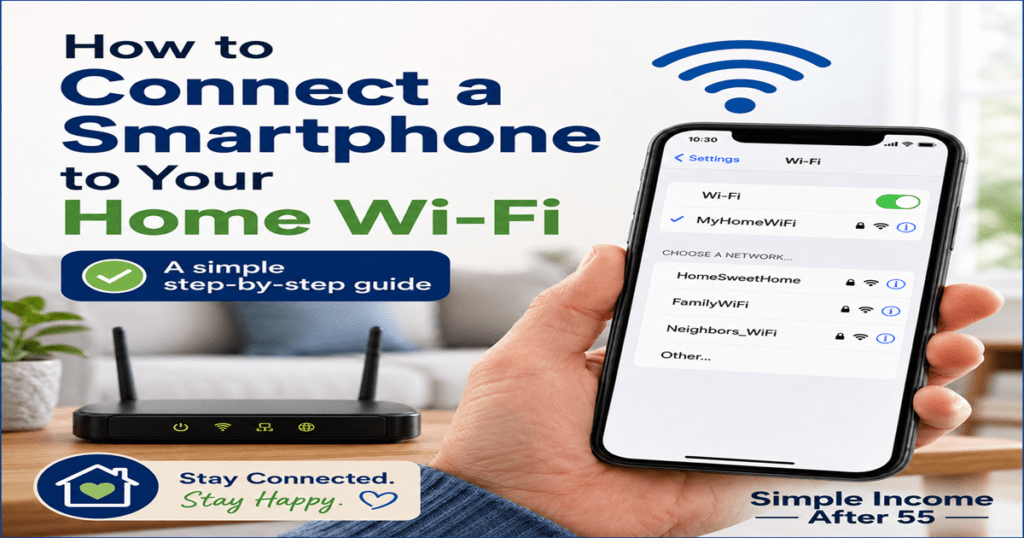
On an iPhone, open Settings, tap Wi-Fi, turn Wi-Fi on, and tap the home network name; a blue checkmark beside the network and the Wi-Fi icon indicate a successful connection.
When the password box appears, enter the password exactly. Capital letters, lowercase letters, numbers, and symbols matter. If the password is long, work through it a few characters at a time. You can use the password display control, when shown, to check your typing before joining. Make sure nobody nearby can read the screen while the password is visible.
- Open Settings and choose Wi-Fi.
- Turn Wi-Fi on if it is off.
- Compare the listed names with your exact home network name.
- Tap the matching network and enter the password carefully.
- Look for the blue checkmark and Wi-Fi icon, then test a familiar webpage.
Connect an Android phone to home Wi-Fi
Several companies make Android phones, so the wording on your screen may not match every instruction word for word. Android setting names can differ by device, and some Google instructions apply only to Android 12 and later. If you see Connections or Wi-Fi instead of network & Internet, choose the option that clearly refers to wireless or Internet connections.
On Android, open Settings, tap network & Internet, tap Internet, and select the home network; networks that require a password display a lock icon.
Enter the Wi-Fi password and choose Connect. Once the network appears as connected, look for the Wi-Fi symbol near the top of the screen. Android saves a network after a successful connection and can reconnect automatically when the phone is nearby and Wi-Fi is on.
- Open Settings and look for Network & Internet, Connections, Internet, or Wi-Fi.
- Turn Wi-Fi on and wait for nearby network names to appear.
- Select the exact name of your home network.
- Enter the password, review it, and tap Connect.
- Confirm the connected label or Wi-Fi symbol, then load a familiar webpage.
Confirm that the connection works
A Wi-Fi symbol shows that the phone has joined a wireless network. Your home internet service could still be interrupted, so take one more step. After the Wi-Fi symbol appears, open a familiar webpage to confirm that the home network also has working internet access. Choose a page you already know rather than a link from an unexpected message.
If the page loads normally, the basic job is finished. You can close Settings and use the phone as usual. If you want a clearer test, temporarily turn cellular data off, load the page again, and then turn cellular data back on. That optional test removes doubt about which connection carried the page, but it is not necessary when the phone clearly shows Wi-Fi and works normally.
You do not need to leave the Wi-Fi settings screen open. The phone should remember the home network after a successful connection. When you return home, glance at the Wi-Fi symbol occasionally until you are comfortable that automatic reconnection is working as expected.
A useful example
Suppose the router card says the home network is MapleHouse24, and the phone lists MapleHouse24, MapleGuest, and MapleHouse_5G. Do not guess based on the first word. Compare the full name with the current router information. Select MapleHouse24, enter the password exactly, and wait for the connection indicator. Then open the weather service or another familiar page you normally use.
If the page opens, there is no need to explore the other networks. If it does not, return to Settings and make sure the phone still shows MapleHouse24 as connected. This example keeps each decision visible: identify, match, enter, confirm, and test. That sequence is more reliable than tapping different networks until one appears to work.
What to try when the phone will not connect
Most first-time connection problems come down to the wrong network, a typing error, or a weak signal. If the phone will not connect, recheck the network name and password, move closer to the router, and ask the internet provider or router maker for help before changing advanced settings.
If you typed the password several times, slow down and compare every character. Watch for a zero that resembles the letter O, a one that resembles a lowercase L, and capital letters that are easy to miss. Do not keep sending the password rapidly. Clear the field and make one careful attempt.
If the correct network does not appear, stand closer to the router and wait for the list to refresh. Check whether another device in the home can use the same Wi-Fi. When no device can connect, the issue may be with the router or internet service rather than your phone. Use the provider’s known contact information, not a telephone number from an unexpected popup or message.
Avoid choosing an open or unfamiliar network simply because it has a stronger signal. Also avoid changing security type, private address controls, DNS entries, or other advanced choices to complete a standard home connection. Those controls have legitimate uses, but guessing at them can create a second problem.
Restarting the phone can be a reasonably simple step. Restarting the router may affect every connected device in the home, including televisions, computers, security equipment, or calls that depend on Wi-Fi. If you decide to restart it, first let other household members know and follow the router or provider instructions.
Common mistakes to avoid
Do not assume the longest or strongest network name is yours. Do not share the Wi-Fi password in a social post, ordinary email, or public note. Do not install an app merely to join a normal home network unless your internet provider has a clear, verified reason for requiring its official app.
Another common mistake is forgetting which password is being requested. The phone may ask for the Wi-Fi password, not the phone unlock code, email password, or internet-provider account password. Read the prompt before typing. If you are unsure, cancel and return after confirming the correct credential.
Finally, do not treat a Wi-Fi icon as proof that every online service is functioning. A specific app can have its own temporary problem. Test one familiar webpage, then a second service if needed. This helps separate a phone-to-router connection issue from a problem affecting only one app or website.
Make the first connection deliberate
Connecting a phone to home Wi-Fi is easier when you prepare before tapping. Find the exact network name and password, stay near the router, and follow the Wi-Fi path for your phone. Once the connection indicator appears, test one familiar webpage.
Keep the network details in a secure household reference so you do not have to solve the same problem again. If the careful basic steps fail, stop before changing advanced controls and contact a trusted helper, the router maker, or your internet provider through a known channel.
Disclaimer
This content is provided for general informational and educational purposes only.